Use tracking system Shapes
Learn more about how to use
 Tracking System Shape Generator
.
Tracking System Shape Generator
.
1) Requirements & Firsts steps
In the
 Stage
, create a
Stage
, create a
 Tracking System
. Then, your
Show
, create a Compo with a
Tracking System Shape Generator
inside rendered in a
Planar Led Screen
or a
Tracking System
. Then, your
Show
, create a Compo with a
Tracking System Shape Generator
inside rendered in a
Planar Led Screen
or a
 Surface
.
Surface
.
In the parameters of the
Tracking System Shape Generator
, select the tracking system.
At this step, you should see at the very least a bounding box in the viewport of the compo. This is a sign that your shape is converting the trackers into Bézier points correctly. If not, it means that there is no trakers converted into points.
If not:
- Ensure you have trackers inside the tracking system in the stage
- Or increase the Radius Limit Detection parameters to enhance the tolerance of detection.
2) Alignement methods
The shape won’t automatically align by itself hover the projection. You have two method to align both world:
Projection Camera method:
Create a camera of type Orthographic Top in the stage. Change the frustum’s size to fit your stage display. If your camera and your screen are perfectly aligned, the points should also be.
Projection Plane method:
Use the Projection plane parameter on a specific axis, and play witht the placement parameters of the shape() such as scale and position), in order to align manually both world.
3) Sorting
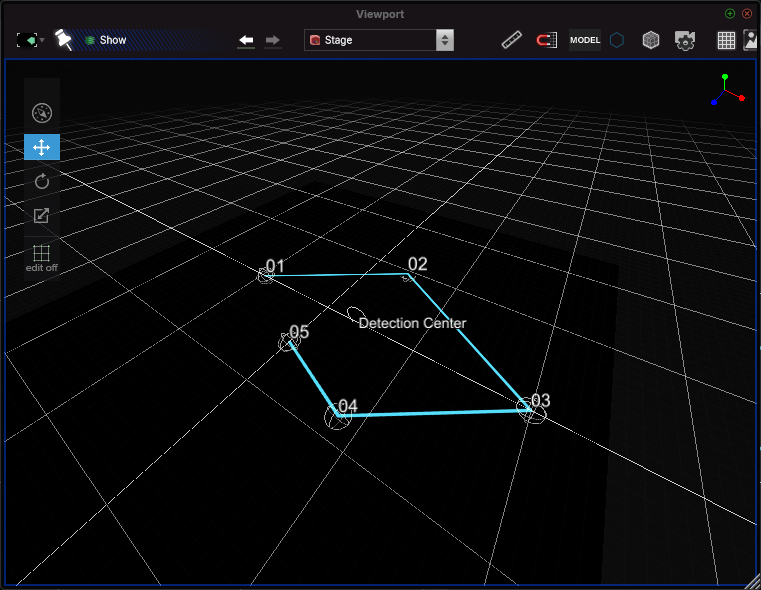
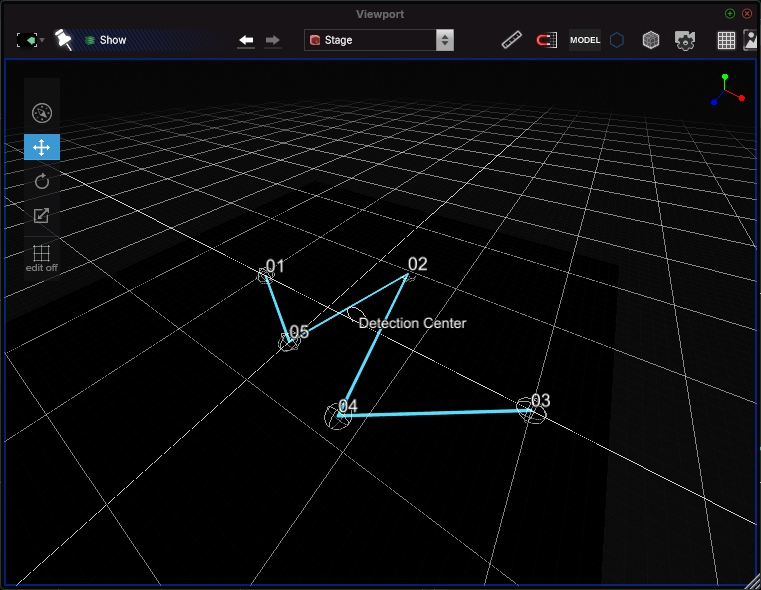
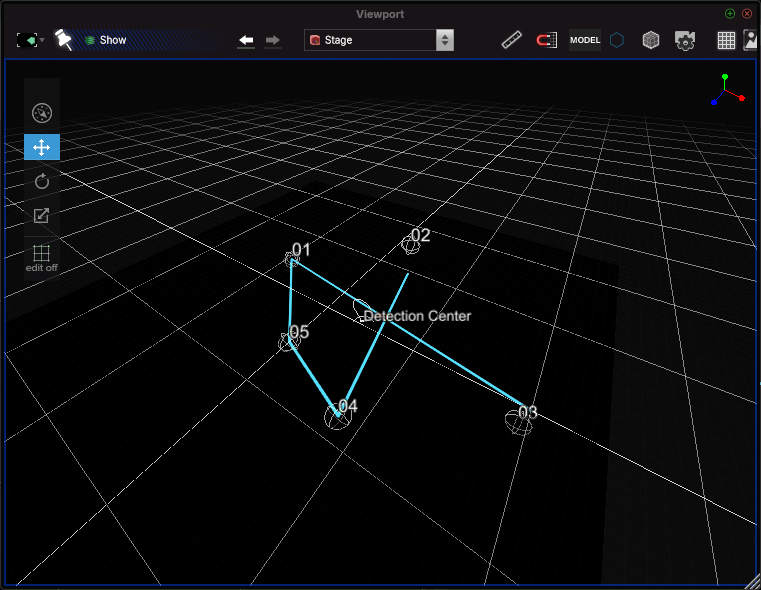
The sorting rule defines the way the bezier points will be connected each other.
- Polar:
- X axis:
- Y axis:
- Z axis:
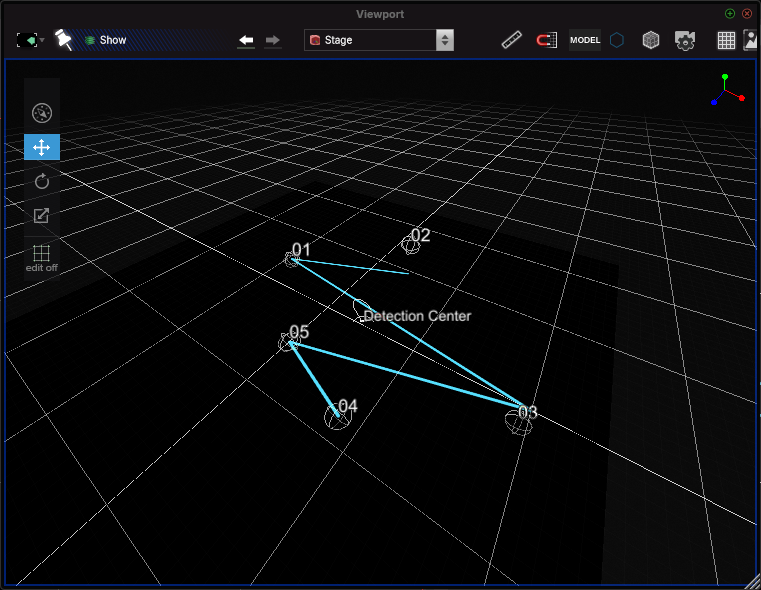
- Radius:
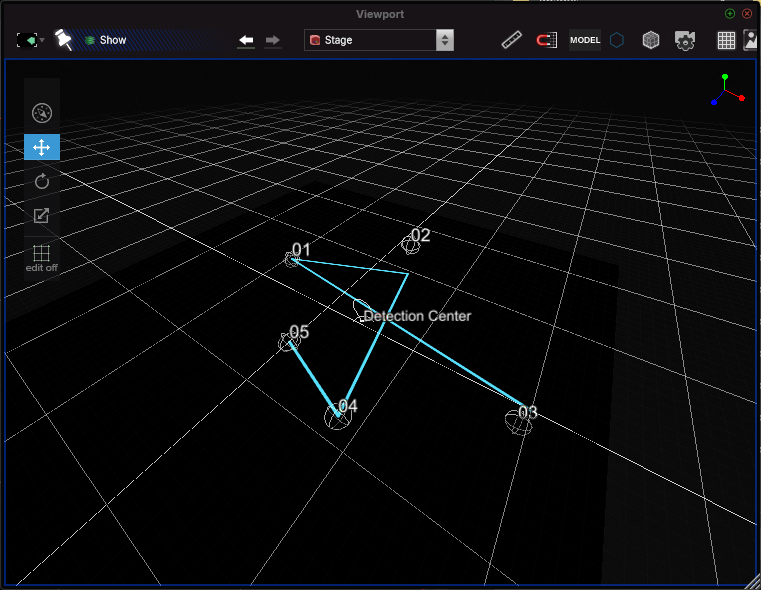
- Tree order:
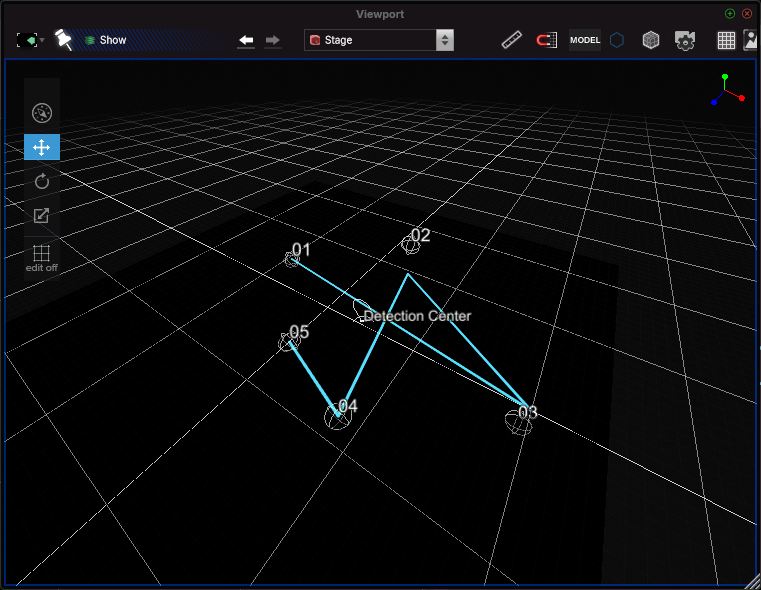
4) Tangents customisation
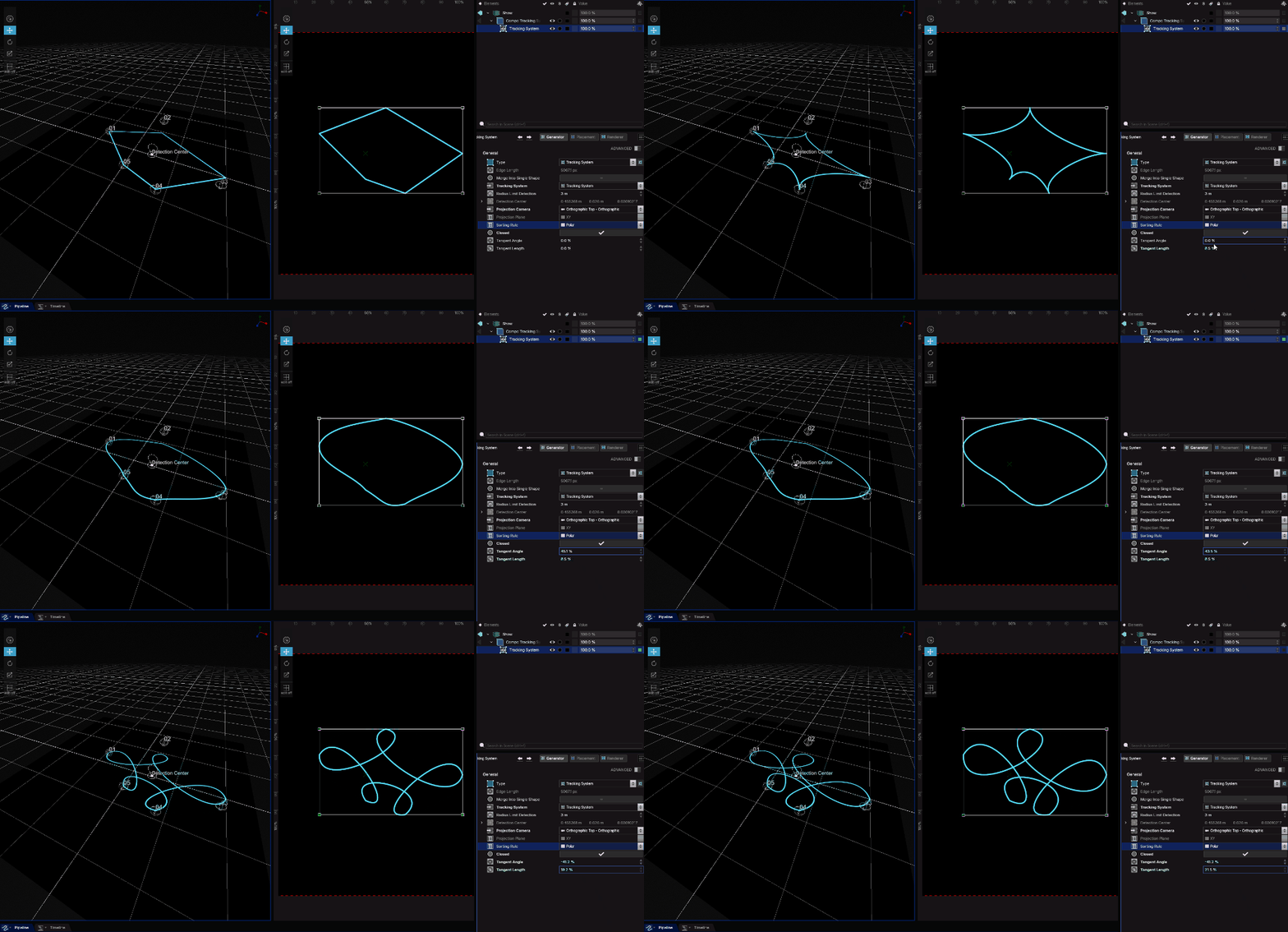
You can roundify the shapes by using the tangent angles and length of the points: