Gaussian Splat basics
How to create and use a Gaussian Splat
The tools used in this tutorial
To generate a sparse point cloud from photo: COLMAP
to train the splats using the sparse cloud: Brush
and an open source editor to clean the ply: Superspl
Basic Step to create a 3DGS .ply file
The photos
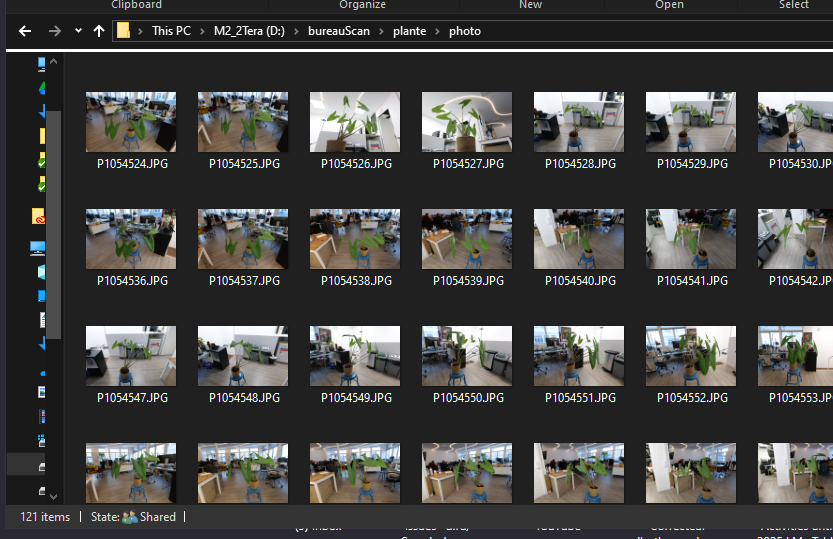
Take multiple photos of the object or scene you want ( like when doing photogrammetry )
COLMAP
-
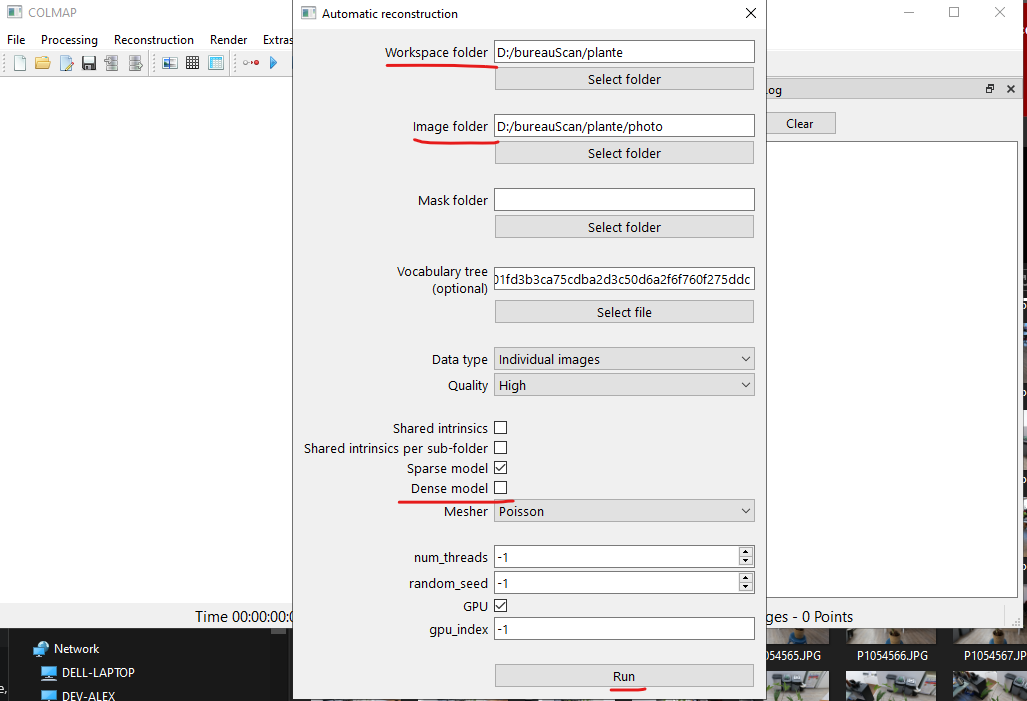
Open COLMAP and press Automatic reconstruction
-
Select the workspace folder and then the photo folder
-
Uncheck Dense model
-
Press Run and wait
-
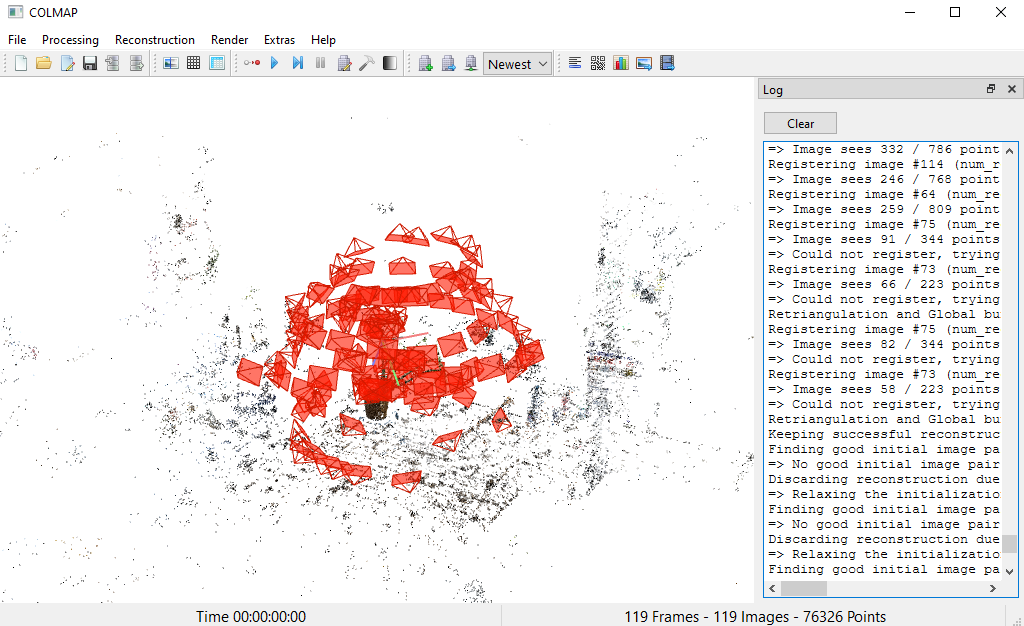
Once COLMAP has finished you will have the sparse cloud and the cameras visible like below
Brush
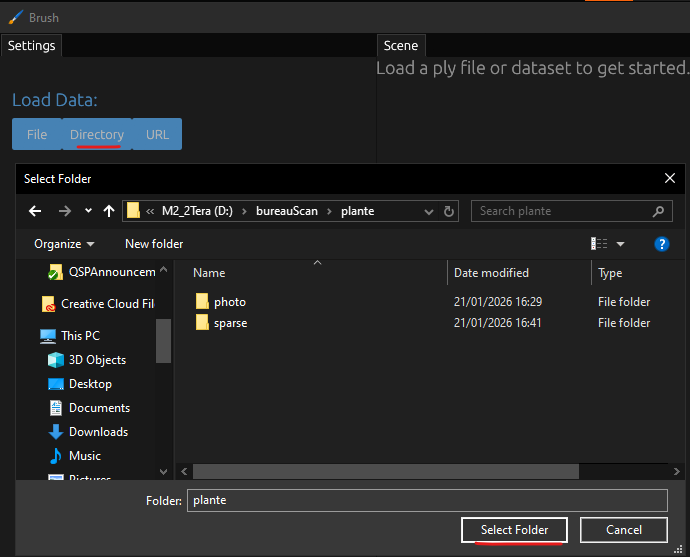
Open Brush and load the workspace folder of COLMAP
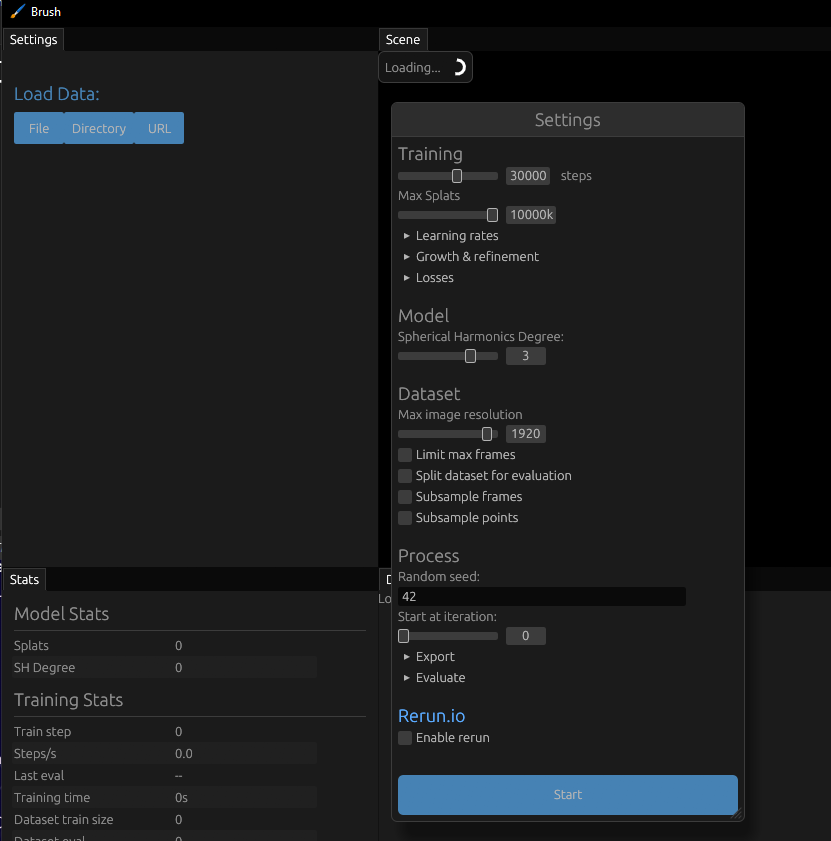
You can directly press start ( or play with the parameters if you know them )
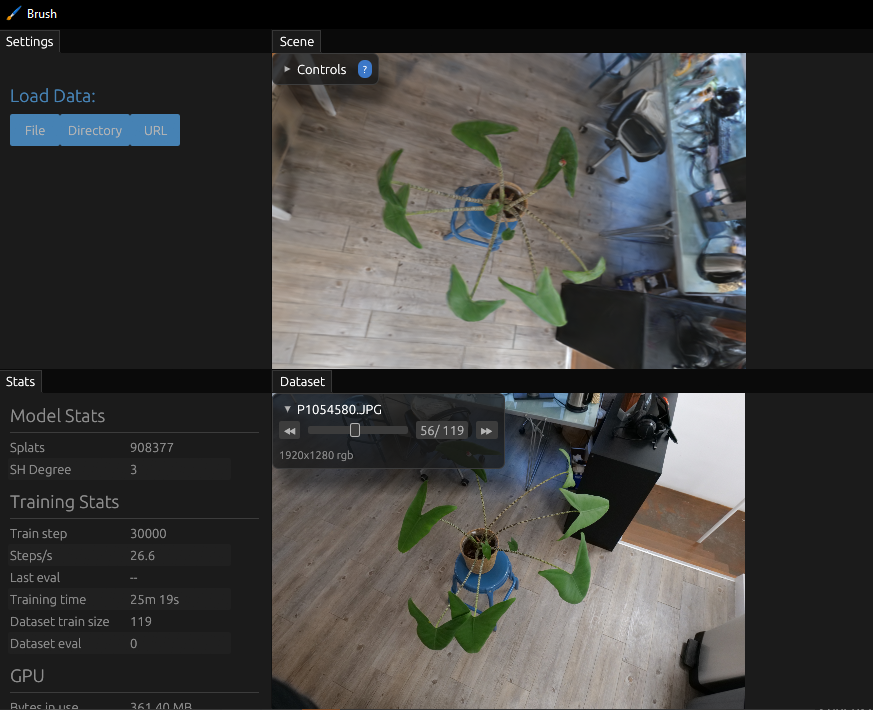
Once the training is done you will find the ply inside the brush exe directory ( or you can export it using the control menu)
Superspl
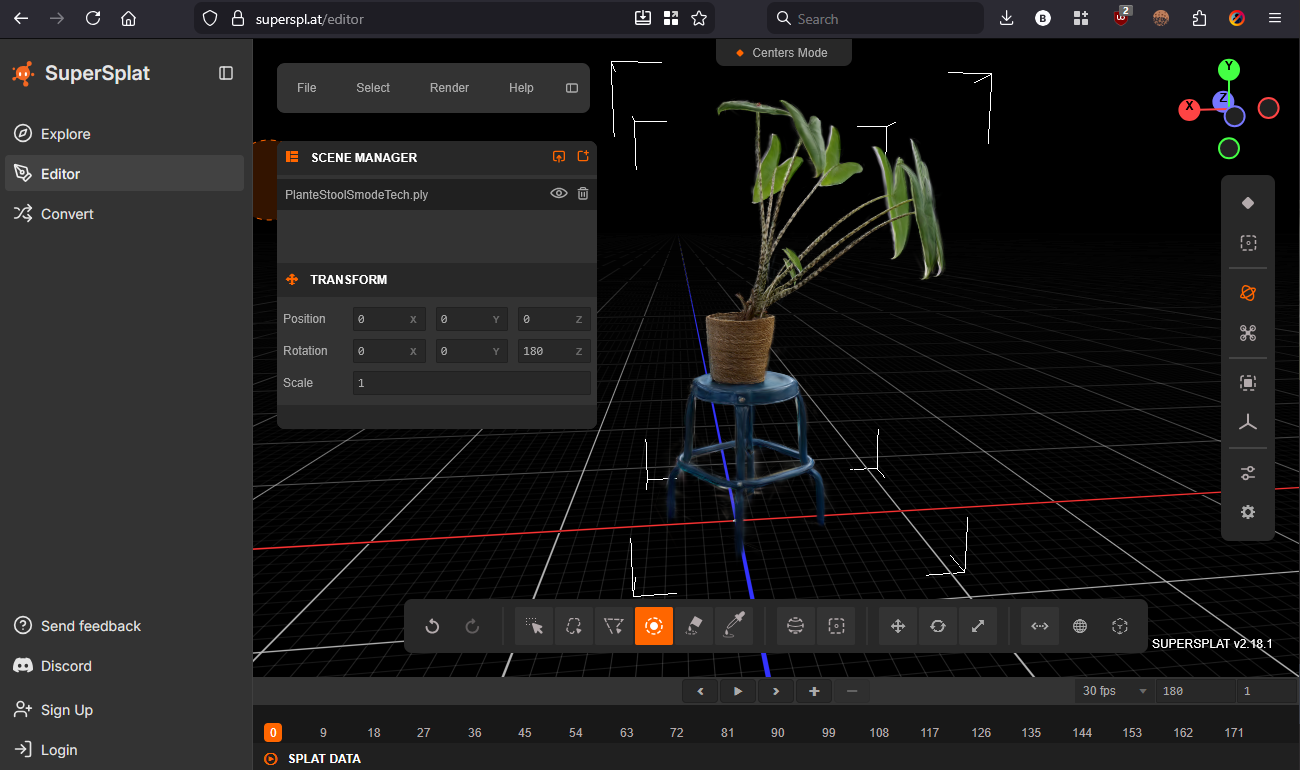
You can open Superspl in your browser to clean and reorient the splat before importing it inside SMODE
Render the Gaussian Splat in SMODE
When the
Gaussian Splat
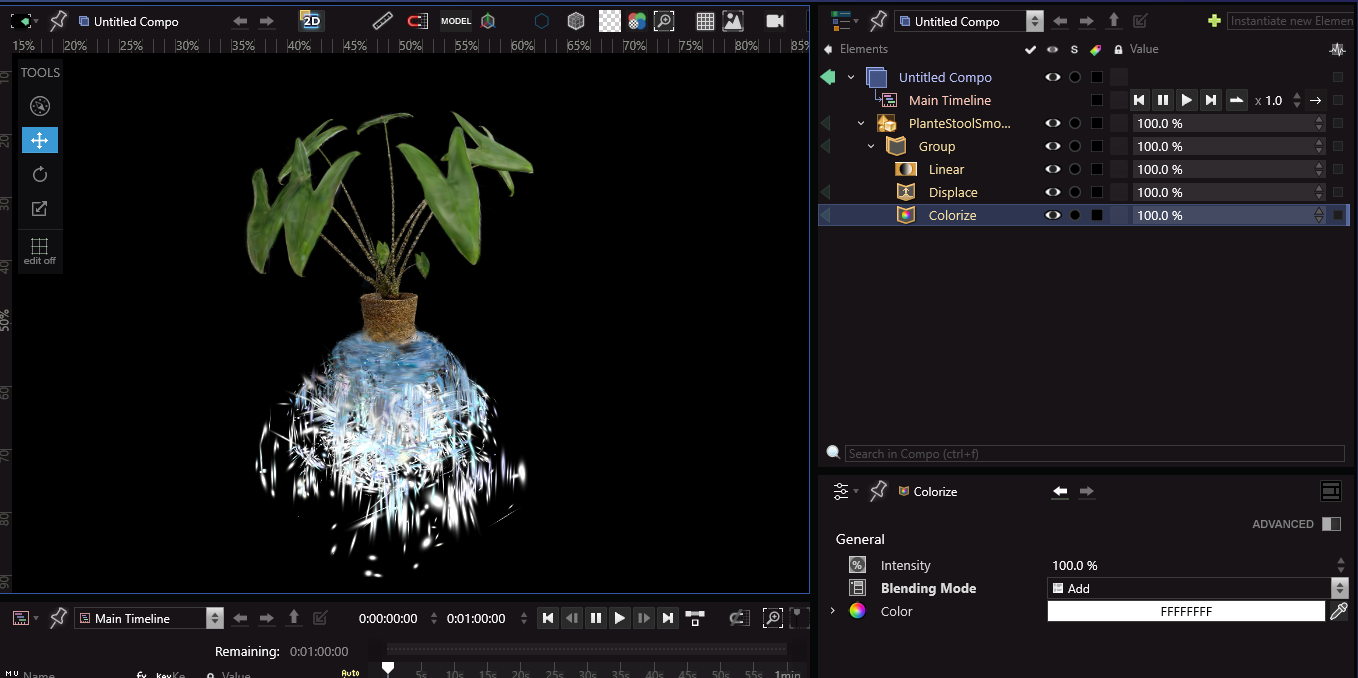
is imported inside SMODE you can use modifiers to mask, deform or change the color of your model
See the example compo Gaussian Splat in the Example pack