Integrate Stream Diffusion
Use Stream diffusion to generate image or as a modifer inside SMODE
Installation
-
First Enable Windows Long Path .
-
Ensure you have a nvidia driver that is recent, see the Requirements
-
Also, make sure that you have CUDA Toolkit 12.9 installed. If not, install it and select Custom installation to only install the required driver components.
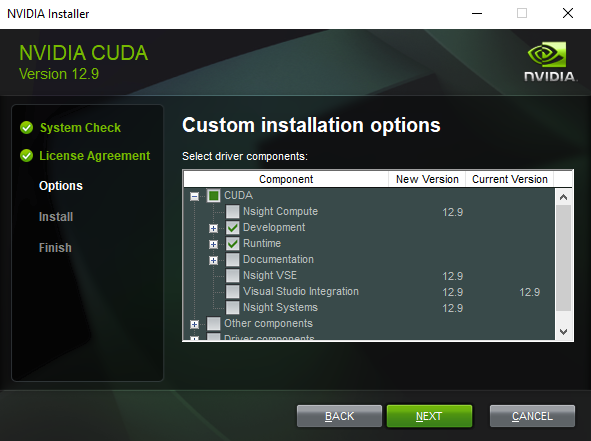
Reboot your computer after installation.
The first time you use the
 Stream Diffusion Modifier
or
Stream Diffusion Modifier
or
 Stream Diffusion Generator
on a computer, you’ll need to install the dependencies (internet connection required) by clicking the installation trigger.
Stream Diffusion Generator
on a computer, you’ll need to install the dependencies (internet connection required) by clicking the installation trigger.

 ON-AIR
should be off before starting the installation.
ON-AIR
should be off before starting the installation.
Please note that the installation can take a while depending on your internet connection (~20 mins).
First usage
Create a compo with a resolution of 512px by 512px in HRD 16bits or HDR 32bits
Create a 2D layer in the element tree and add the
Stream Diffusion Modifier
to the compo (not to the 2D layer)
If not done already, click on the Install trigger inside the StreamDiffusion modifier.
If the model was already downloaded and no further compiling is needed, the generation should start within a few seconds.
Runtime
Streamdiffusion runs on an different runtime than SMODE’s. Simple activation and de-activation will still let streamdiffusion run in the background.
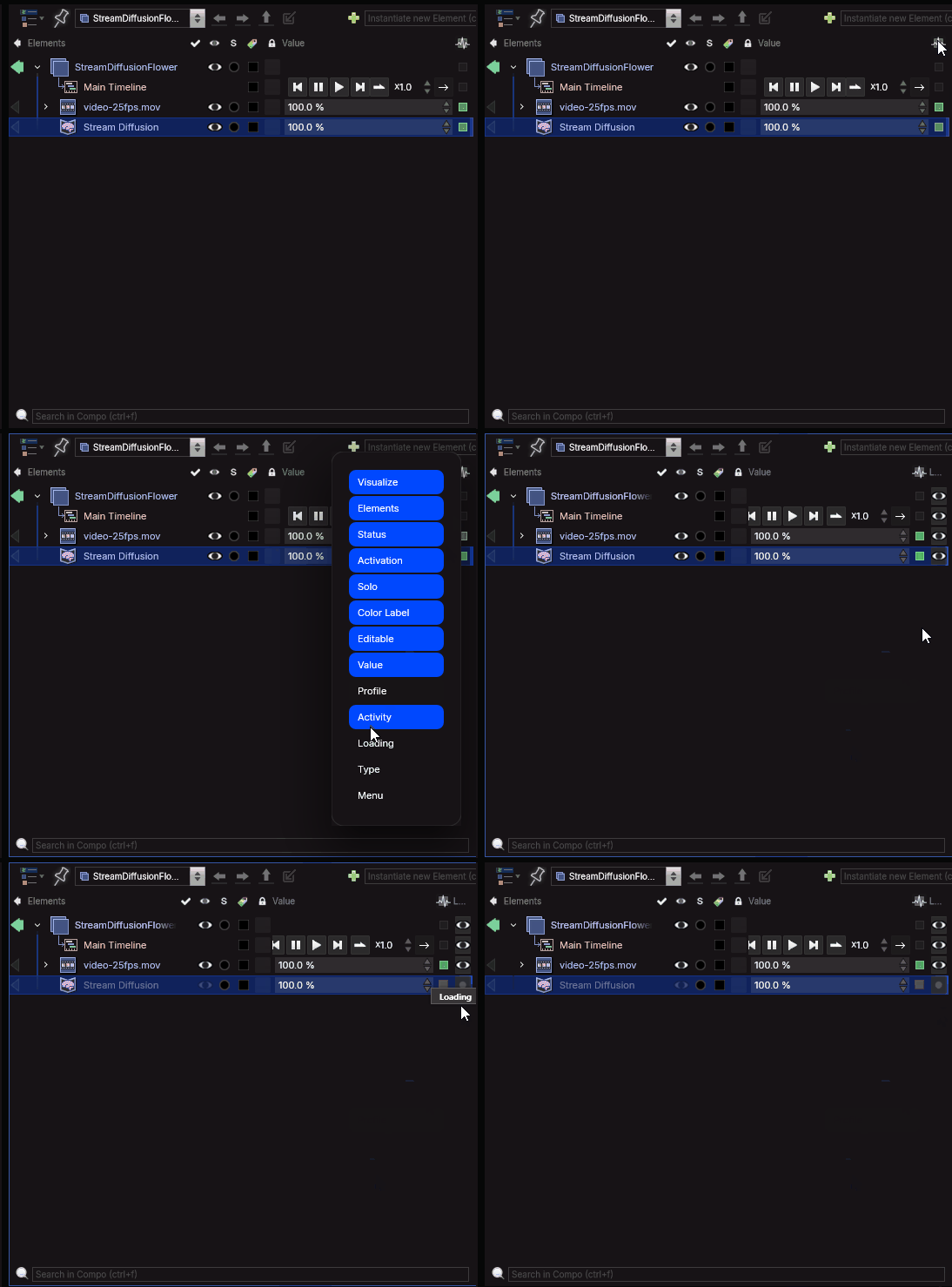
To control streamdiffusion’s runtime, you can right click on the elements tree’s top bar and select ’loading’. This will display the loading column. You can now control Streamdiffusion’s runtime by clicking on it’s loading icon.
Model selection
In the model path, you can chose between 2 pre-installed models (sd-turbo and sdxl-xl), you can find other models on huggingface
To use them, all you’ll need is to copy the path to the model (like “stabilityai/sd-turbo” for example)
Models protected by a token or password are not supported
General Controls
Timestep Indice
One of the most important parameters is the timestep indice
The higher the indices, the more the image generated will be close to the input image, and the lower the indice, the closer it will be to the prompt
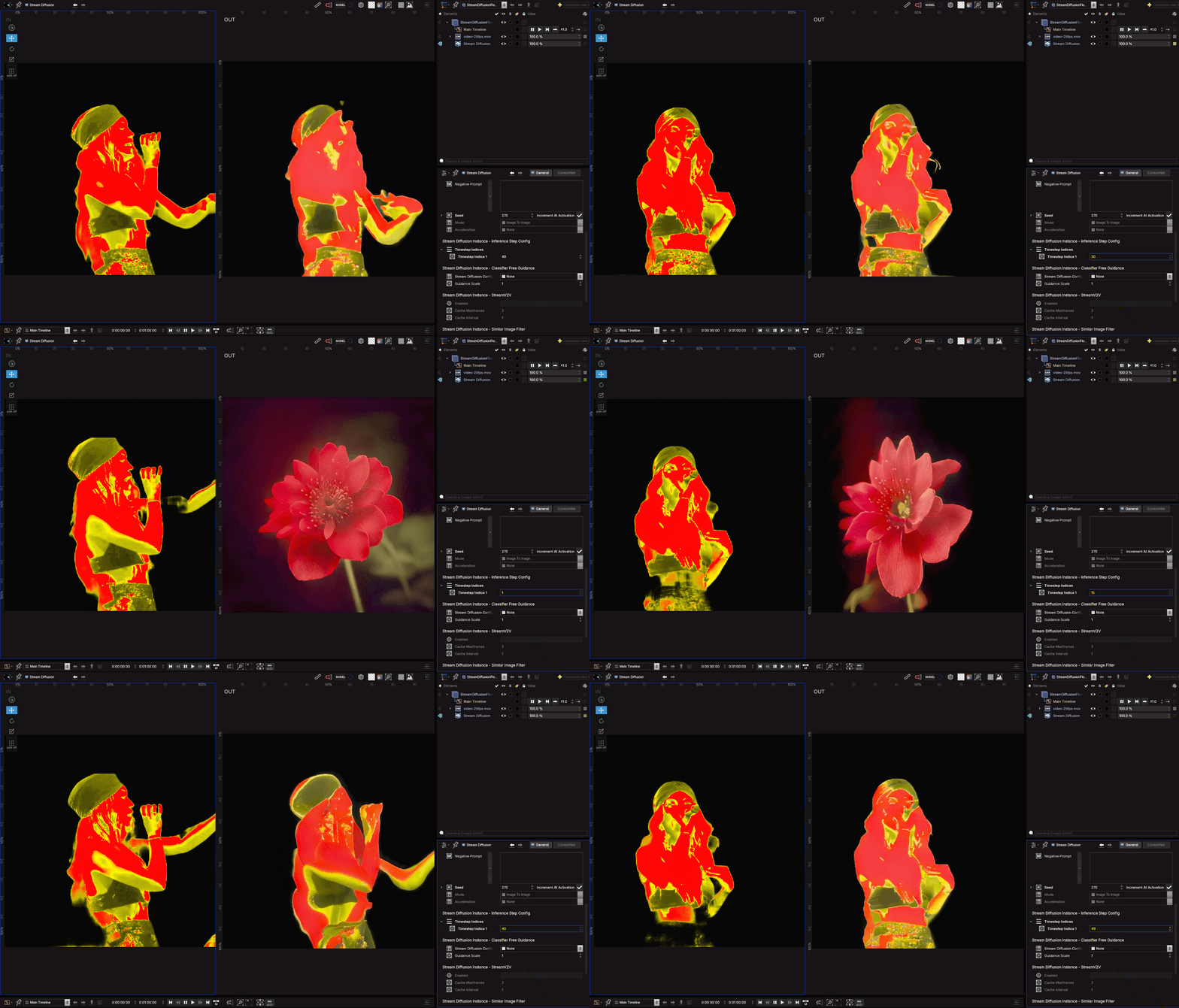
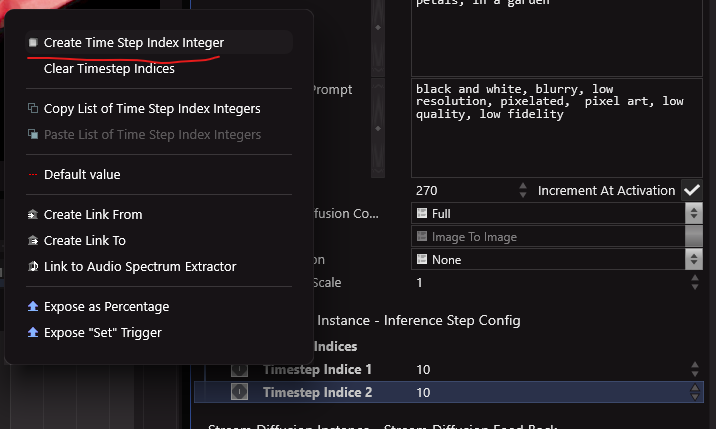
You can add new indices to improve the image quality in tradeoff performance
StreamV2V
Toggle this option when streamdiffusion is de-activated to enable the caching of previous frames, so they influence the generation of the next ones. This results in a more coherent and less jittery stream.
Similar Image Filter
The option is activated by default, increases performances by skipping re-running current frames that have an inference identical to previous.
Controlnet
Since R15, you can push control over the generated images even further, with controlnet.
In this tab you have :
General
for each controlnet module that’s activated, you’ll be able to select and preview what the module is actually doing to the input image.
Canny
This module will draw edges based on the reference. It’s useful for retaining the composition of the original image.

Depth
This module will estimate depth based on the reference image.

Pose
This module will detect human features at key points. It’s helpful in copying poses without copying other details like background, outfit, or hairstyles.

Acceleration
Acceleration engines (Tensor RT & Torchcompile) can only be toggled on when streamdiffusion’s runtime is off.
When you load a StreamDiffusion instance with new acceleration parameters, the model will need to be re-compiled, wich can take several minutes.
Debug
Inside Smode’s logs folder, there is a specific log for the Streamdiffusion instance, if the installation fails or the generation doesn’t work you’ll need to look for errors inside the logs.
If the instance of StreamDiffusion could not be found after activating the layer, then maybe it has crashed.
You will need to look in the windows event viewer>application to see
Uninstalling
Inside the Engine Preferences panel, under StreamDiffusion configuration, use the Uninstall trigger button to uninstall the plugin.
Or go inside the C:\ProgramData\SmodeTech\smode Edition\Packages folder
The model cache is managed by the huggingface_hub cf: https://huggingface.co/docs/datasets/cache
This cache is generally located in username/.cache/huggingface/