Integrate Stream Diffusion
Use Stream diffusion to generate image or as a modifer inside SMODE
Installation
First
Enable Windows Long Path
and install this https://aka.ms/vs/17/release/vc_redist.x64.exe
Have a nvidia driver that is recent see the
Requirements
The first time you use the
 Stream Diffusion Modifier(beta)
or
Stream Diffusion Modifier(beta)
or
 Stream Diffusion Generator (beta)
on a computer, you’ll need to install the dependencies (internet connection required) by clicking the installation trigger.
Stream Diffusion Generator (beta)
on a computer, you’ll need to install the dependencies (internet connection required) by clicking the installation trigger.

ON-AIR
should be off before starting the installation.
Please note that the installation can take a lot of time depending on your internet connection (~20 mins).
Optionally you can install TensorRT, which will allow you to have faster generation performances in trade of control (changing some parameters will have no effect until a reload)
First usage
Create a compo with a resolution of 512px by 512px in HRD 16bits or HDR 32bits
Create a noise in the element tree
add the
Stream Diffusion Modifier(beta)
to the compo (not to the noise)
If not done already, click on the Auto Install trigger inside the StreamDiffusion modifier.
Otherwise the generation will start in 1 or 2 seconds (if the model was already downloaded)
Model selection
In the model path, you can chose a model, ( SDXL are not compatible ), you can find models on huggingface
All you need is to copy the path to the model (like “stabilityai/sd-turbo” for example)
Model protected by a token or password are not supported
Control
The main parameter to change is the timestamp indie
Here you have an example with one indice of 1
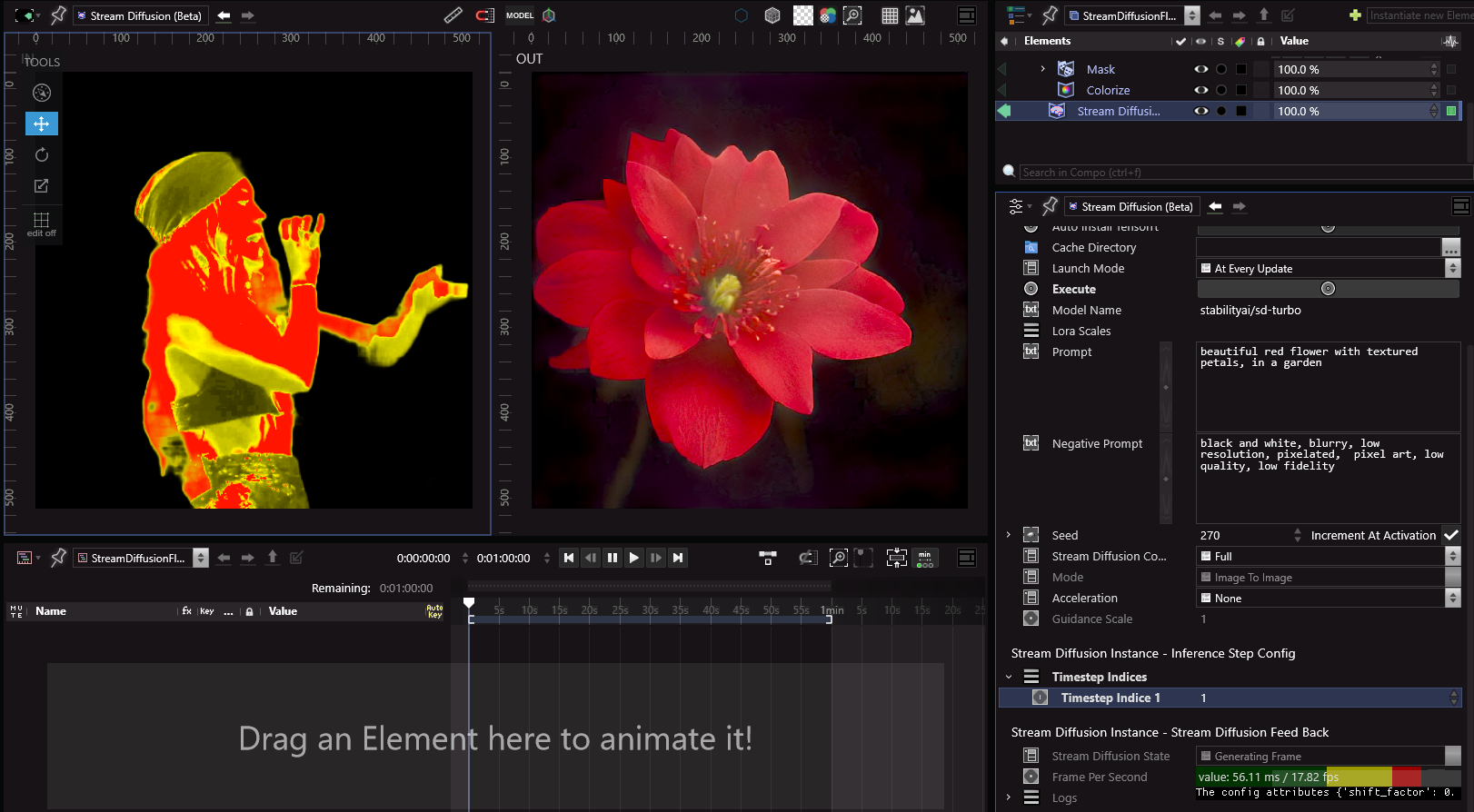
Here with 10

Here with 20

Here with 49
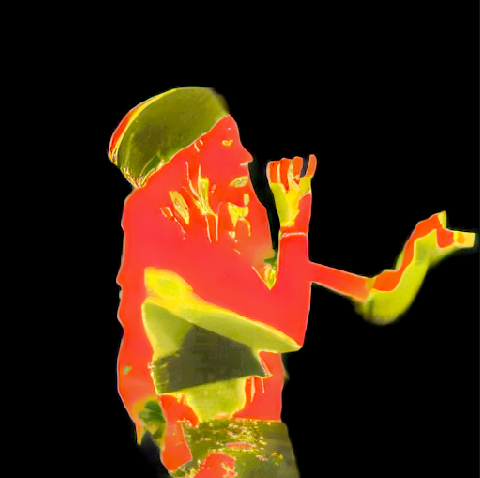
The higher the indices, the more the image generated will be close to the input image, and reverse, the lower the indices, the closer it will be from the prompt
You can add new indices to improve the image quality in tradeoff performance
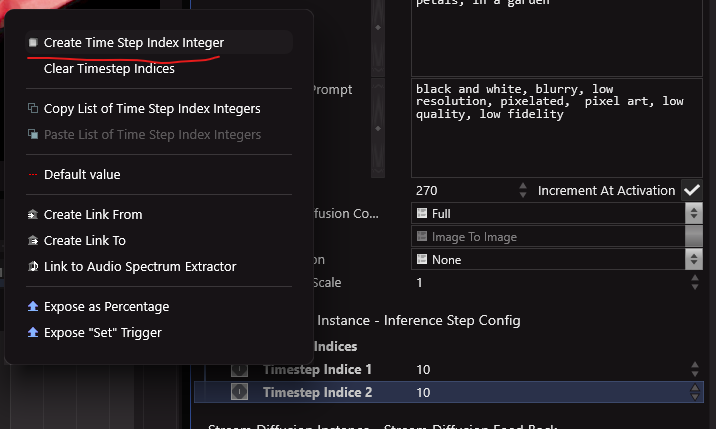
For example here with 1 then 1:
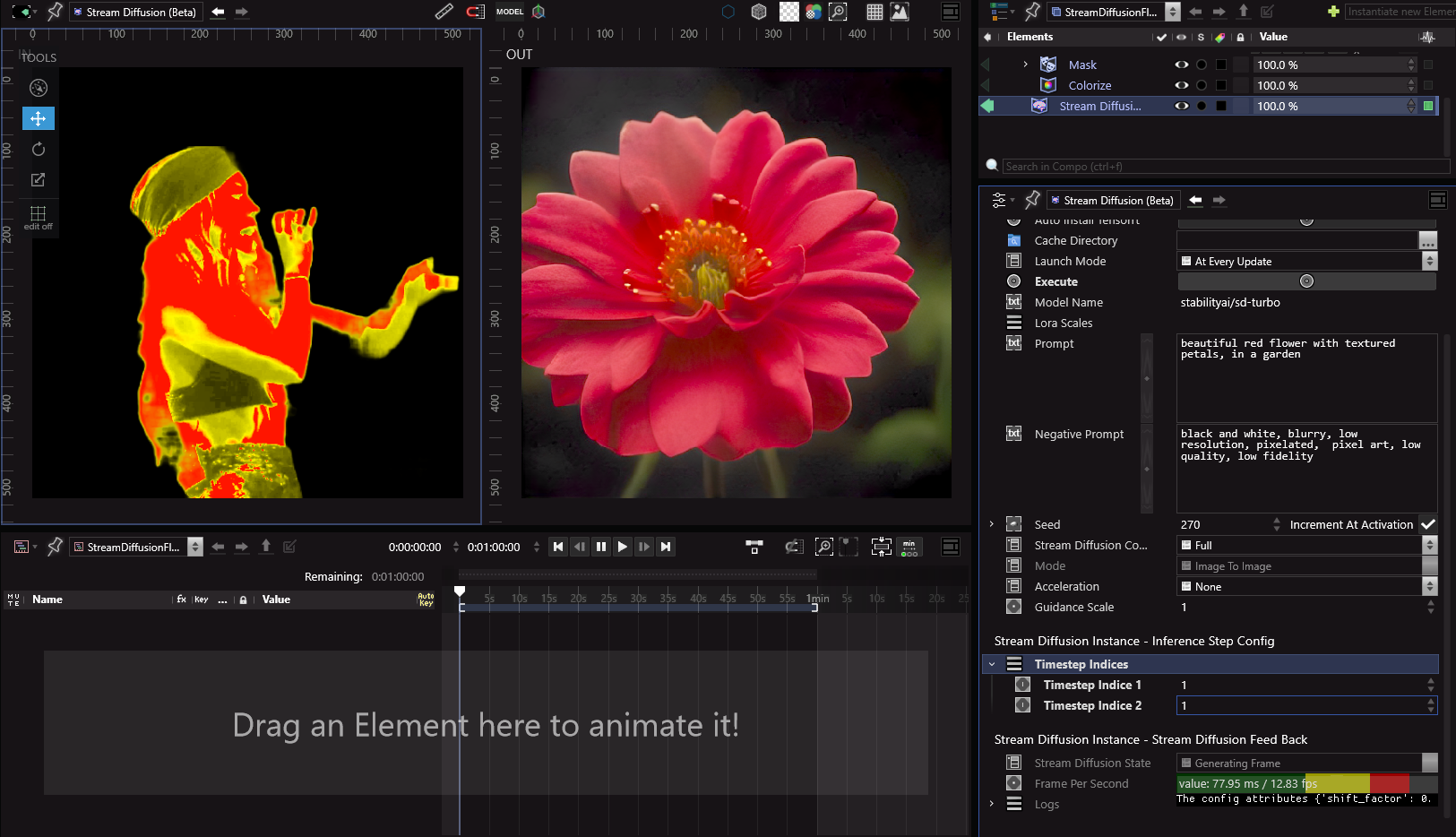
or 10 then 10

or 20 then 10

TensorRT
First, ensure that you have CUDA Toolkit 12.9 installed. If not, install it and select Custom installation to only install the required driver components.
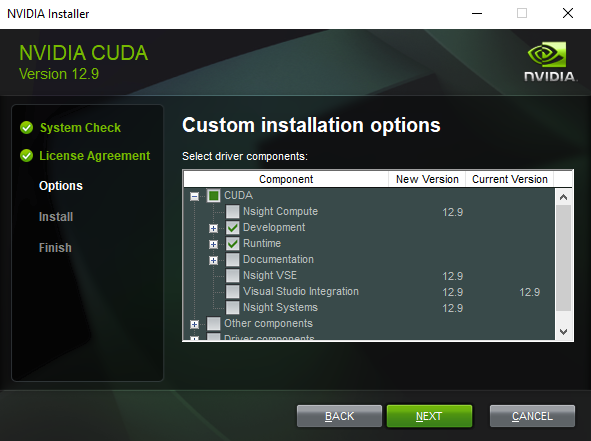
Reboot your computer after installation.
The tensorRT acceleration requires you to have installed tensorRT. You can do so by clicking on the Auto Install Tensorrt trigger inside the StreamDiffusion modifier.

You can then change the acceleration to tensorRT.
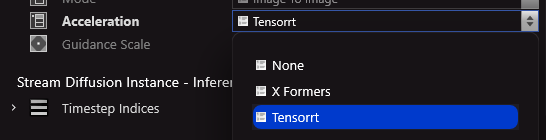
When you load a StreamDiffusion with new parameters, you’ll need to wait for the model to be compiled, this can take several minutes.
If you installed tensorRT thanks to the auto install tensorrt trigger but you did not had CUDA Toolkit 12.9 installed, it will not work properly (freeze, low fps,…).
If you are in this situation, then install CUDA Toolkit 12.9 as said above, and delete the engine folder located atC:\ProgramData\SmodeTech\<yourversionofSmode>\Packages\StreamDiffusion-R13\engine(ProgramData is a hidden folder, be sure to activate hidden files view in Windows if you do not see it).
Then restart Smode and reload the StreamDiffusion modifier, the model will be recompiled with tensorRT.
Debug
Inside Smode’s logs folder, there is a log for the Streamdiffusion instance, if the installation fails or the generation doesn’t work you’ll need to look for errors inside the log.
If the instance of StreamDiffusion could not be found after activating the layer, then maybe it has crashed.
You will need to look in the windows event viewer>application to see
If you get the following error : ModuleNotFoundError: No module named 'diffusers' you need to modify the requirements.txt file in
C:\ProgramData\SmodeTech\Smode Live\Packages\StreamDiffusion-00ecbdc45a46bc6cd6e57487271e3a7325995e49
by adding the line --extra-index-url https://pypi.ngc.nvidia.com on top
after this run the StreamDiffusionDeps.bat and StreamDiffusionInstallTensorrt.bat in the same folder
Uninstalling
Inside the Engine Preferences panel, under StreamDiffusion configuration, use the Uninstall trigger button to uninstall the plugin.
Or go inside the C:\ProgramData\SmodeTech\smode Edition\Packages folder
The model cache is managed by the huggingface_hub cf: https://huggingface.co/docs/datasets/cache
This cache is generally located in username/.cache/huggingface/